Show Product Dimensions on Amazon: Images That Prevent Returns (2026)
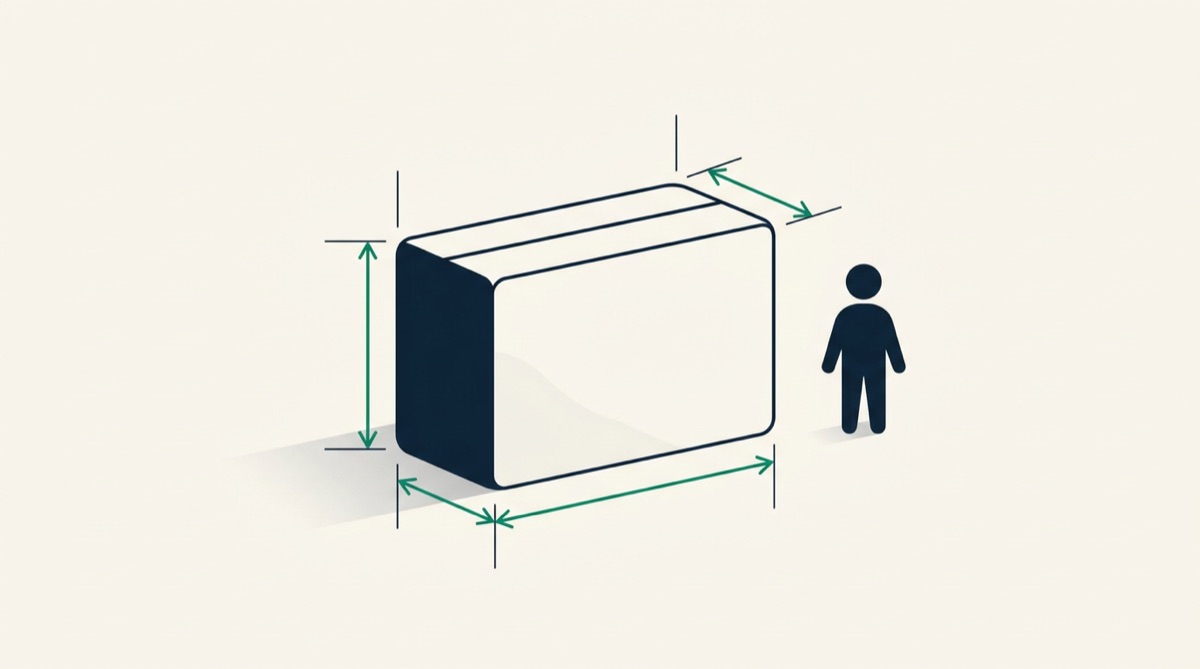
If you want to show product dimensions on Amazon properly, one line of measurements buried in the bullets is not enough — shoppers don't read bullets, they read images. A well-designed dimensions image answers the question every physical product raises, "will it fit?", before it turns into a return, a refund and a one-star review that says "smaller than expected". Here is how to design one that actually prevents those returns, which measurements to include for your category, and where the image belongs in your carousel.
A dimensions image is return prevention, not decoration
Most Amazon traffic is mobile, and on mobile the image carousel appears above the bullet text — which is exactly where your measurements currently hide. A shopper who never scrolls that far buys on assumption, and wrong assumptions come back in a box. "Smaller than expected" and "didn't fit" are among the most commonly cited return reasons for physical products, and both are preventable with a single well-made image. That's why the dimensions diagram is one of the six core types in our complete guide to Amazon infographics — and arguably the one with the most direct payback, since it works on returns and conversion at the same time.
Which measurements matter — by category
The classic mistake is dumping every number from the factory spec sheet onto the image. Buyers decide with two to four measurements; show those and stop.
| Category | Measure first | Also worth showing |
|---|---|---|
| Furniture & home | Width × depth × height | Seat height, weight capacity |
| Kitchen & storage | Capacity (liters / oz) | Footprint, height under a cabinet |
| Bags & cases | Interior dimensions | Exterior size, "fits a 15-inch laptop" |
| Electronics accessories | Exact device or model fit | Cable length, plug dimensions |
| Textiles & apparel | Flat measurements per size | Height and size of the model shown |
The pattern behind the table: measure what the buyer's space, body or device constrains — not what the factory happens to know. If your returns mention a specific fit problem, that measurement goes first.
Design conventions that make dimensions legible
Arrows and diagram style
Use double-headed arrows placed just outside the product silhouette — one per measurement, never crossing each other. Shoot the product straight-on (add a side view when depth matters) rather than at a stylish three-quarter angle: perspective distorts proportions exactly where precision is the point. Keep line weight thin, use one accent color for all arrows, and give every number a label a human uses ("height", not "dim. A"). Cluttered diagrams with crossing arrows are among the failures dissected in common infographic mistakes.
Always both unit systems
Show imperial and metric together — "12 in / 30.5 cm" — with the marketplace's primary system first: inches lead on amazon.com, centimeters lead in Europe. Sensible rounding is fine; a contradiction between your image and the product details table is not, because it's exactly the kind of discrepancy that ends in a return.
Size-reference objects
A hand holding the product, or a familiar object beside it, communicates scale faster than any number. Two caveats. First, props of any kind are banned on the main image, which must show the product alone on pure white — the full list is in the main image rules — so reference objects belong on secondary images only. Second, the reference must not mislead: Amazon's policy prohibits misleading imagery, and a shopper tricked by scale returns the product anyway. Choose references with a genuinely consistent size — a coin, a standard bottle, an average adult hand.
Where the dimensions image belongs in your carousel
Amazon gives you up to nine slots, and roughly the first six to seven are visible without expanding. In our experience the dimensions image earns slot three or four: after the main image and one strong benefit-led infographic, but comfortably before attention runs out. Burying it in slot eight is nearly the same as not having one. A few placement rules of thumb:
- Doubt-driven categories move it up. Furniture, luggage, storage — if "will it fit?" is the first question, answer it second.
- Keep it zoomable. At least 1000 px on the longest side so zoom works, ideally 2000 × 2000 px — shoppers zoom into the numbers.
- Run the thumbnail test. If the measurements are illegible at phone-carousel size, enlarge the type before you re-order anything. Tools like Graflio preview this at listing size while you edit.
How the dimensions image fits into the full image sequence — and the rest of the listing — is covered in our listing optimization checklist.
Three mistakes that undo the work
- Too many numbers. Six-plus measurements bury the two the buyer needs. Cut to what decides the purchase.
- One unit system. Metric-only on amazon.com or imperial-only in Germany makes half your audience do mental math — some won't bother and will guess wrong.
- Numbers that disagree with the spec table. When image and product details conflict, trust evaporates and returns follow. Reconcile before uploading.
FAQ
Do I need a dimensions image if the measurements are already in the bullets?
Yes. Most shoppers, especially on mobile, decide from the carousel without reading the bullets. The bullet line is for the careful minority and for indexing; the image is for everyone else — which is most buyers.
Should imperial or metric come first?
Lead with the primary system of the marketplace the listing serves: inches first on amazon.com, centimeters first on European marketplaces. Always show the second system alongside, since many shoppers think in the other one.
Can I put dimensions on the main image?
No. The main image must show only the product on a pure white background — no text, arrows, diagrams or props. Dimensions belong on a secondary image, ideally in the first half of the carousel.
Research your product, then generate the set
Paste one ASIN. Graflio reads the listing and its reviews, studies the best sellers around it, then renders a full set of on-brand infographics — every image still editable. €10 of credits free, no card.
Try Graflio free →